Skip to main content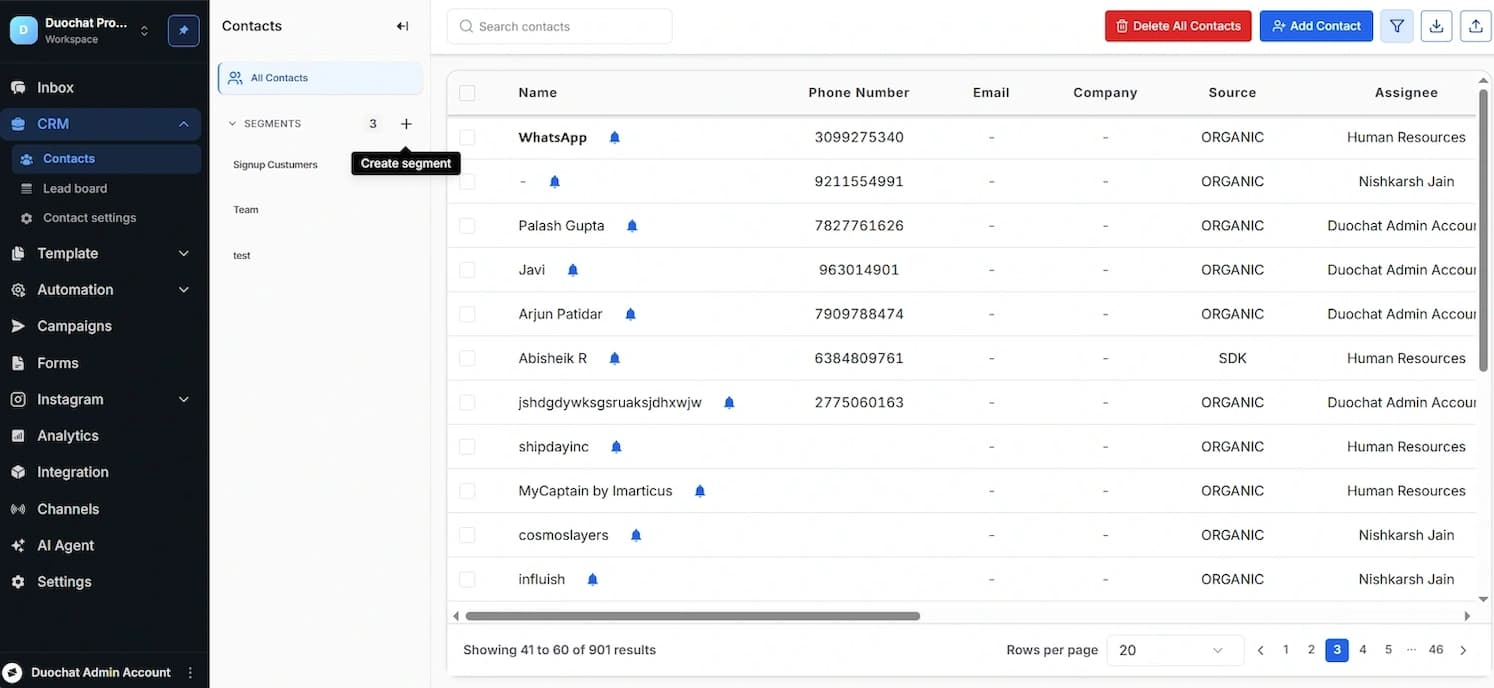
Contact Segments
How to Create Segments
Go to CRM > Contacts from the left navigation bar.
On the left side, you’ll see a list of existing segments. Click on any segment name to view its details. You can also rename or delete a segment using the more options (⋮) menu.
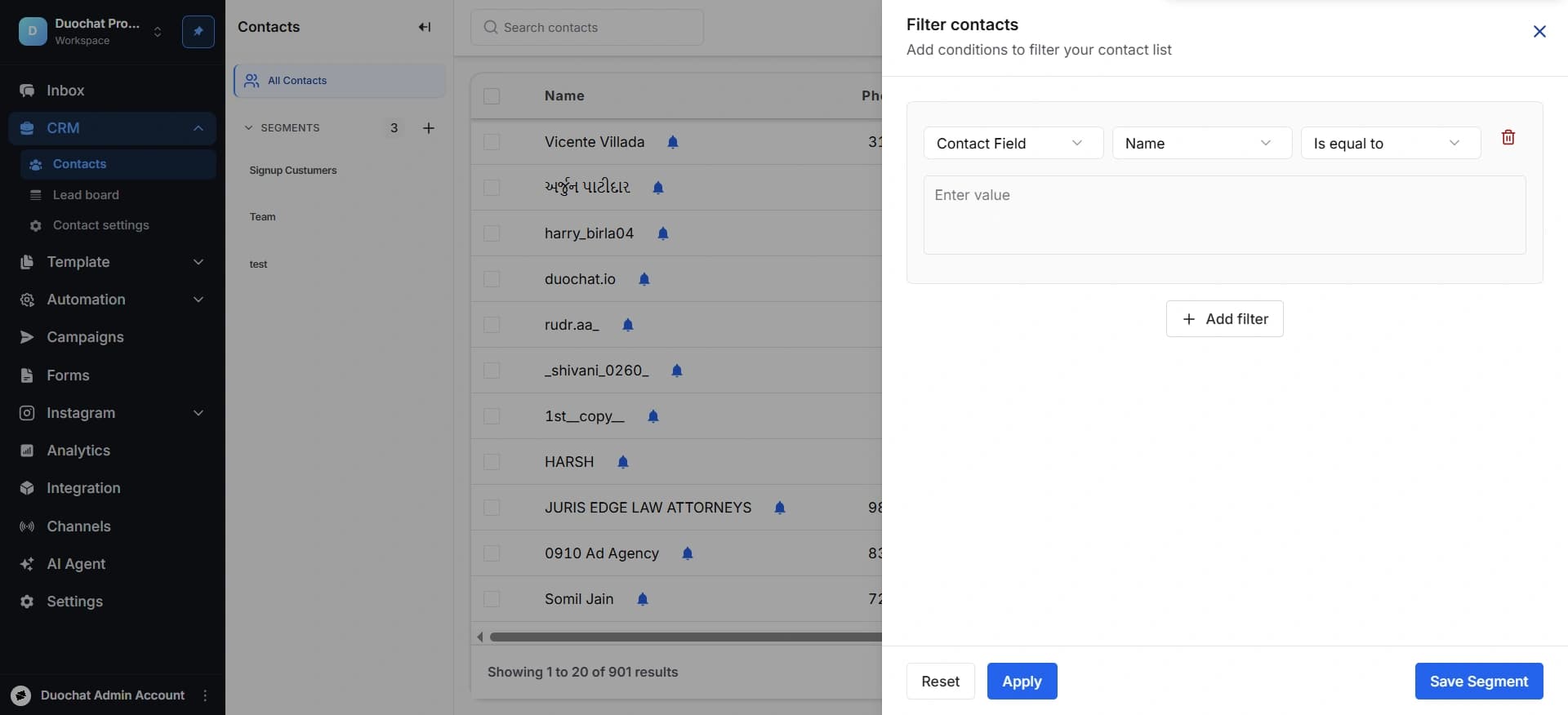
To create a new segment, click the “+” button. A dialog box will open. Use filters to specify your audience. You can build conditions using Contact Fields, Tags, Source, Assignee, and Marketing Status. These filters allow you to narrow down contacts based on relevant attributes.
To apply multiple conditions, click “Add Filter” and connect them using AND or OR logic. Once done, click “Save Segment.”
Enter a clear and relevant Segment Name based on its purpose, then click “Save Segment” again.
On this page