Contact Fields
Overview
Contact Fields allow you to store additional information about your leads beyond the default details. They help you personalize your CRM, organize data more effectively, and capture custom information specific to your business needs.
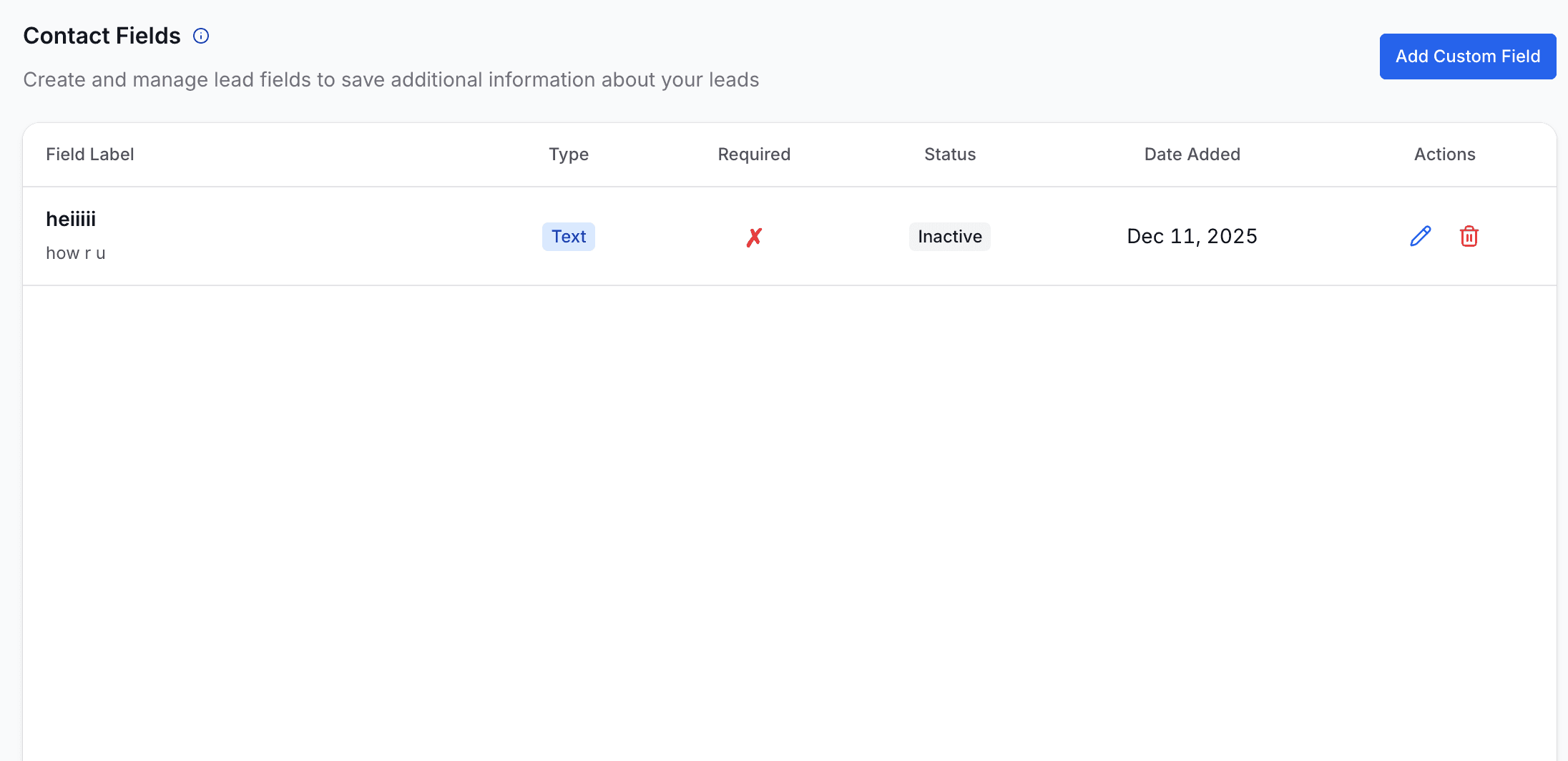
The Contact Fields page lists all existing custom fields along with their type, required status, activity status, and available actions such as edit or delete.
Using the Contact Fields Page
The Contact Fields page displays the following details for each field:
- Field Label – The name of your custom field
- Type – How data is captured (Text, Number, Date, etc.)
- Required – Indicates whether the field must be filled
- Status – Shows if the field is Active or Inactive
- Actions – Edit or delete existing fields
You can create unlimited custom fields based on your business requirements.
Creating a Custom Field
Click Add Custom Field to open the field creation form.
The form is divided into three main sections.
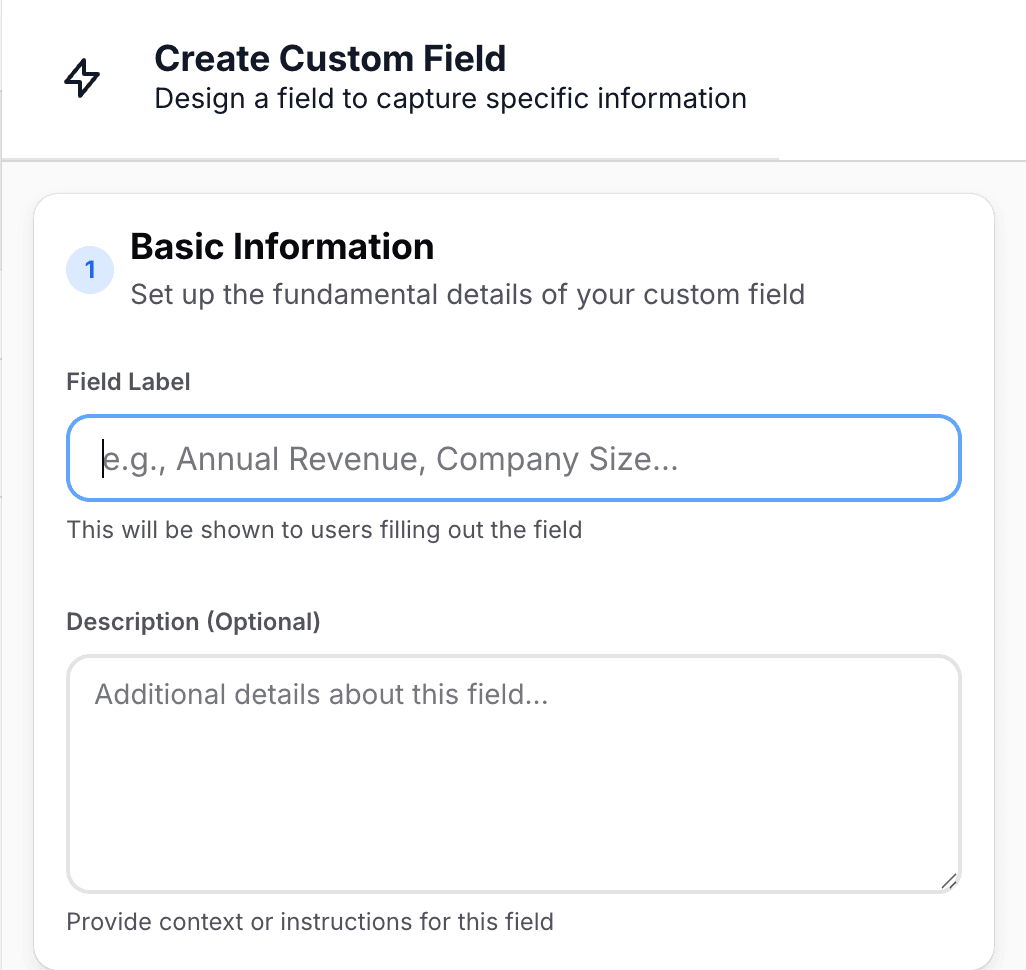
Basic Information
Define the core details of your custom field.
Field Label
Enter the name of the field (e.g., Annual Revenue, Order ID, Customer Notes).
This label will be displayed wherever the field is used across the platform.
Description (Optional)
Add context or instructions explaining how the field should be used.
This helps team members understand what data should be entered.
Field Type
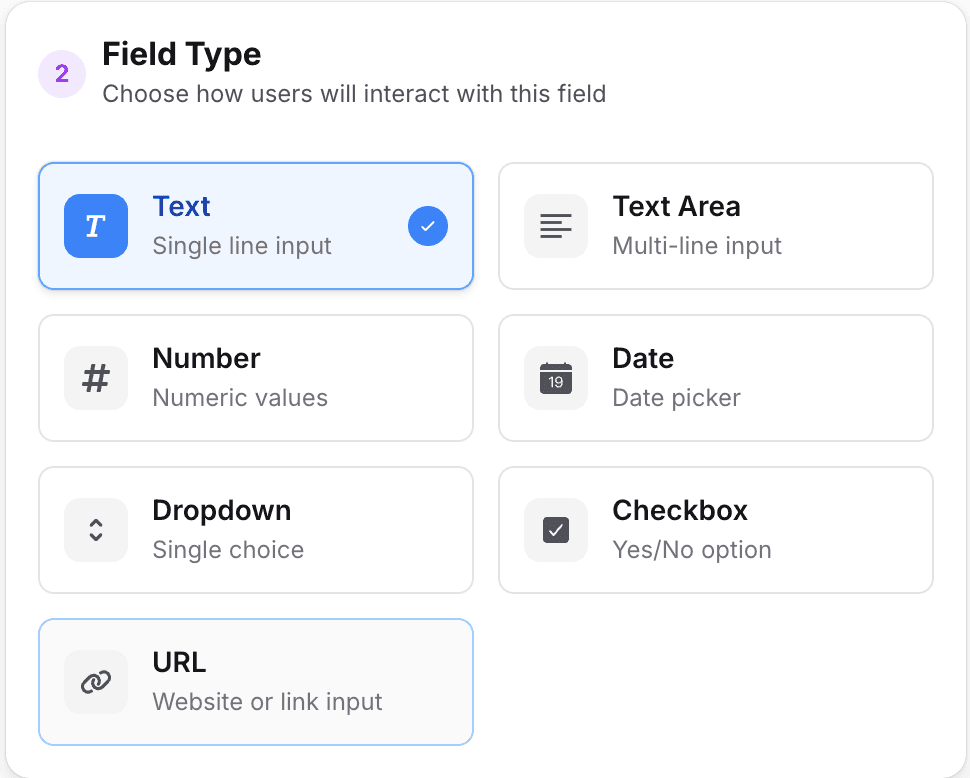
Choose how users will interact with the field. Available input types include:
- Text — Single-line text input
- Text Area — Multi-line input for longer information
- Number — Accepts only numeric values
- Date — Opens a date picker
- Dropdown — Select one option from a predefined list
- Checkbox — Yes/No or True/False selection
- URL — Input field for links or website addresses
Each field type ensures accurate and structured data collection.
Field Settings
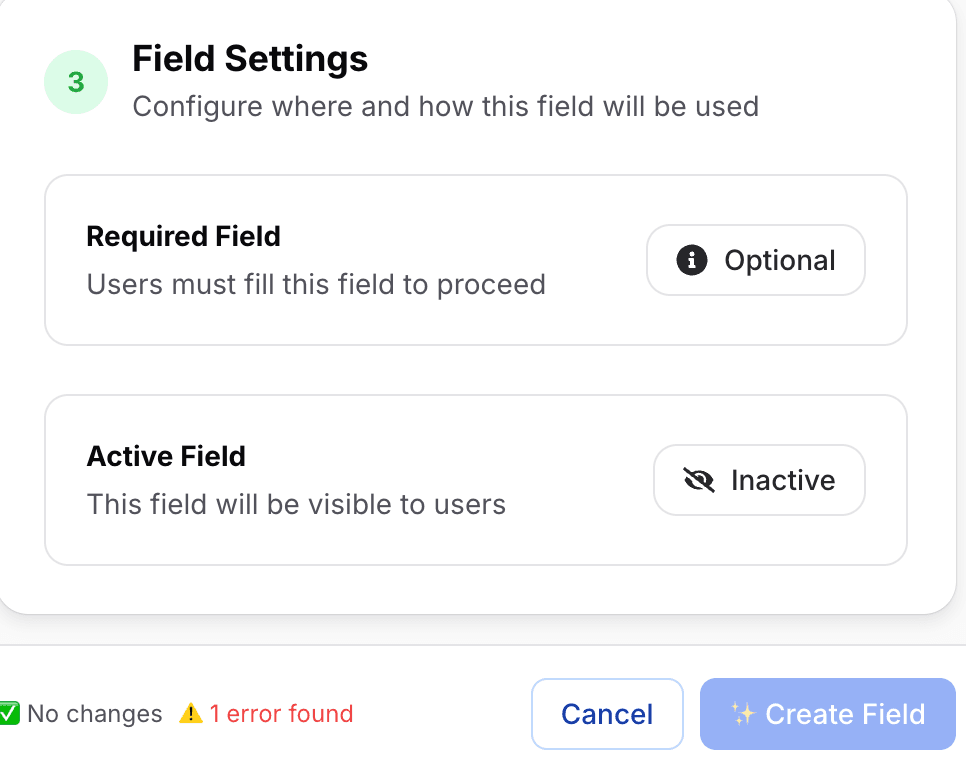
Configure how the field behaves across duochat.
Required Field
- Enabled – Users must fill the field before proceeding
- Disabled – Users can skip the field if it is not mandatory
Active Field
Controls whether the field is visible and usable.
- Active – Field appears in contact profiles and can collect data
- Inactive – Field is hidden but remains saved for future use
This allows you to temporarily disable fields without deleting them.
Managing Existing Fields
From the Contact Fields page, you can:
- Edit a field to update its label, type, or settings
- Delete a field permanently
- View field status, type, and creation date
- Toggle between Active and Inactive states
Custom fields ensure your CRM captures exactly the information your business needs, making contact management more flexible, organized, and powerful.
On this page