LinkedIn Integration
Overview
The LinkedIn Integration in duochat allows you to connect your LinkedIn profile or Company Page, create professional posts, schedule content, and publish directly from a single workspace.
With an intuitive editor and live preview, you can manage your LinkedIn content without switching between multiple platforms.
This guide walks you through the complete process—from opening the LinkedIn channel to creating and publishing your first LinkedIn post.
Step 1: Open the LinkedIn Channel
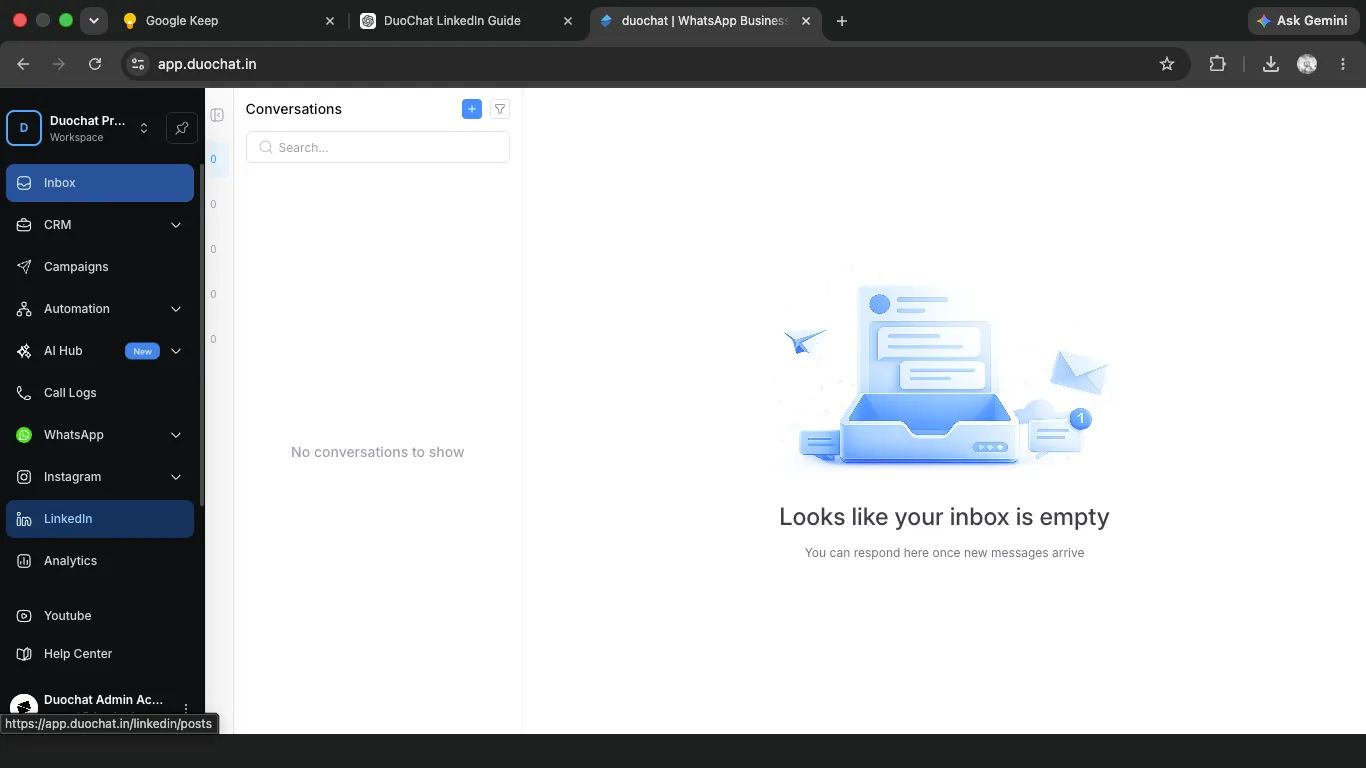
After logging into duochat, locate the navigation sidebar on the left side of the application.
Click the LinkedIn icon to open the LinkedIn channel.
This section allows you to connect your LinkedIn account, create posts, schedule content, and manage all your LinkedIn activity from one place.
Step 2: Open the LinkedIn Connection Screen
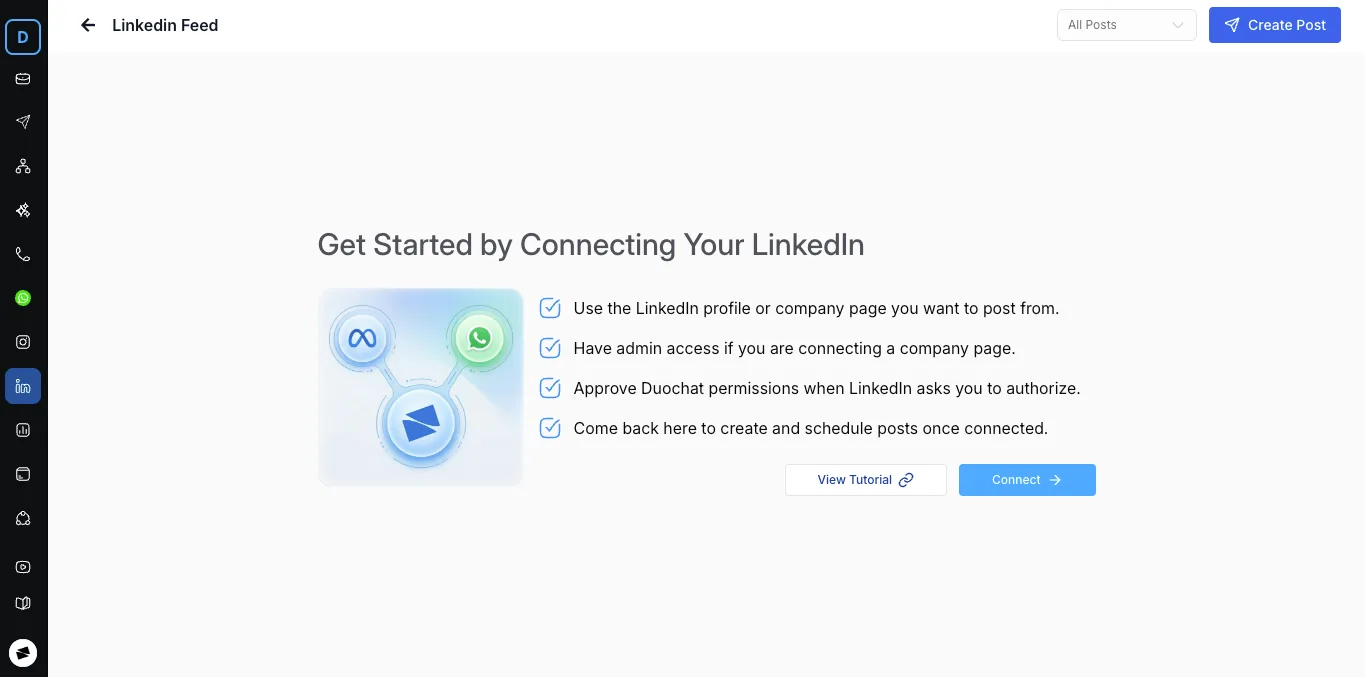
If your LinkedIn account has not yet been connected, duochat displays the LinkedIn connection page.
This screen provides a brief overview of the connection process and lets you begin authorizing your LinkedIn account.
You'll find
- Connect button
Step 3: Connect Your LinkedIn Account
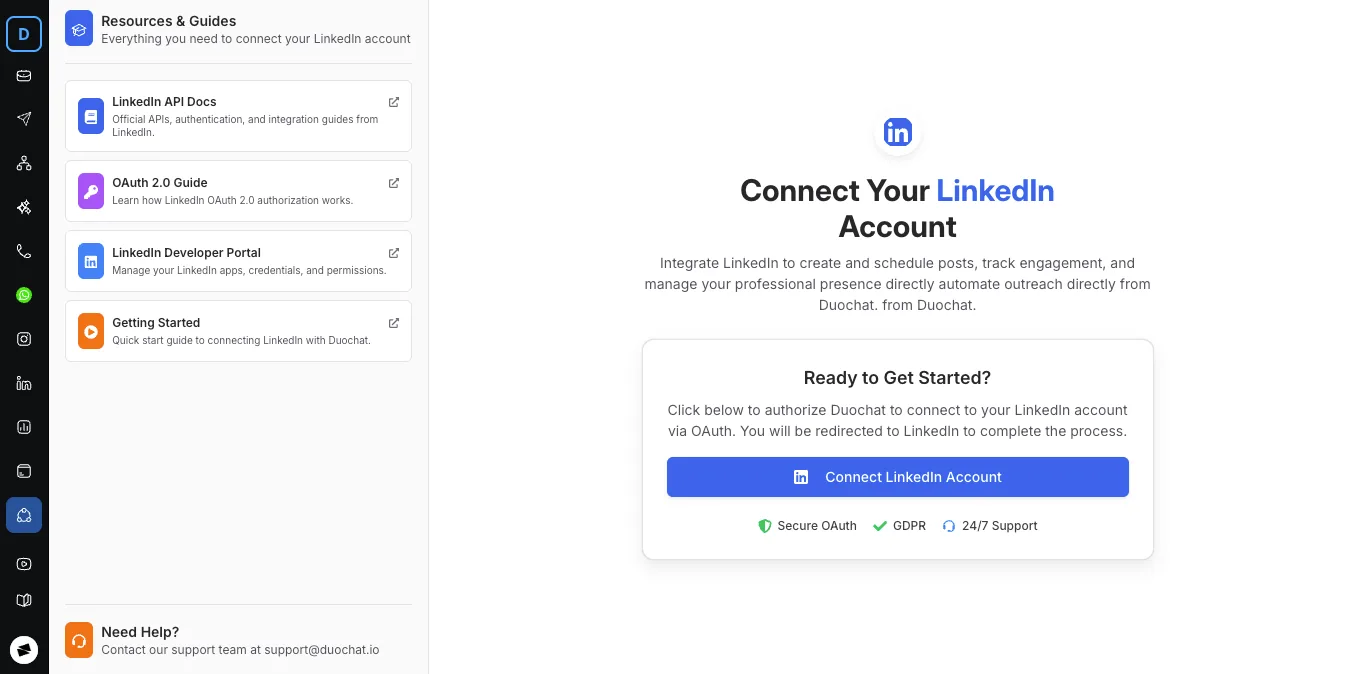
Click the Connect LinkedIn Account button.
duochat securely redirects you to LinkedIn's OAuth authorization page, where you'll grant permission for the integration.
Before continuing, ensure that:
- You have an active LinkedIn account.
- You know your LinkedIn login credentials.
- If posting to a LinkedIn Company Page, you have administrator access to that page.
Step 4: Sign In to LinkedIn
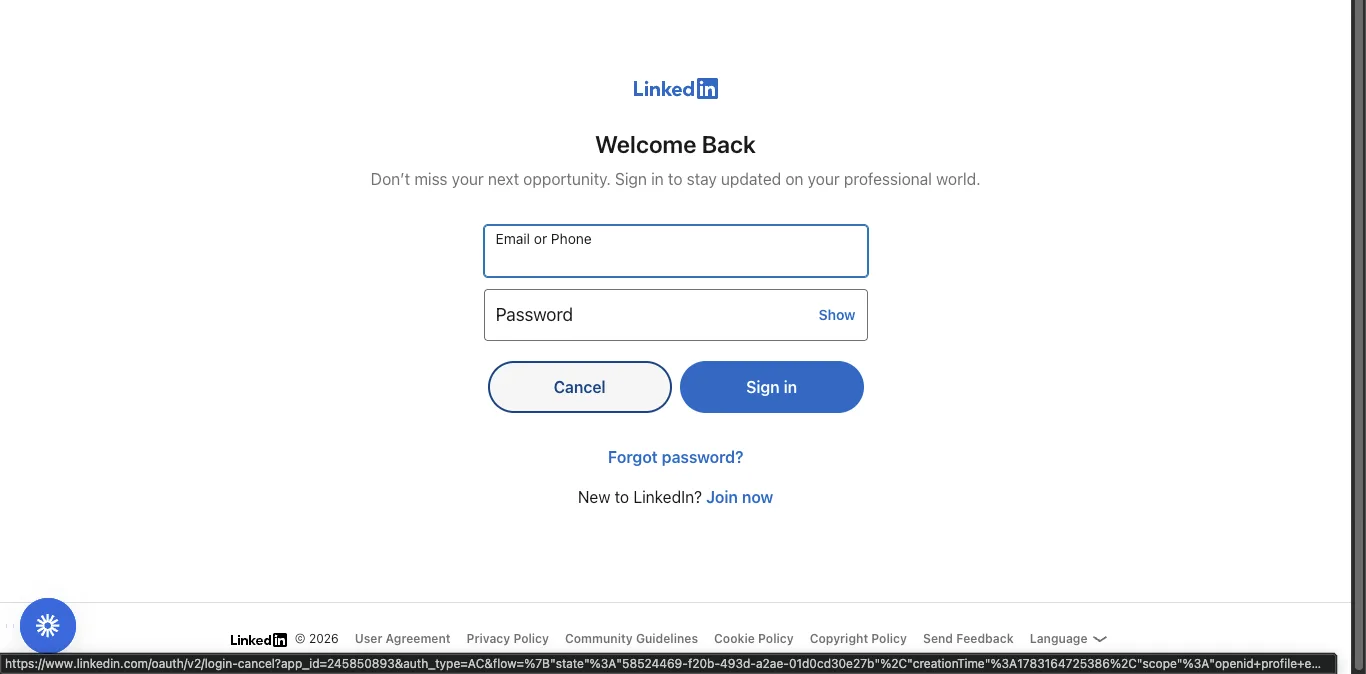
If you are not already signed in, LinkedIn prompts you to log in.
Enter your:
- Email address or phone number
- Password
Click Sign In to continue.
Step 5: Complete Verification (If Required)
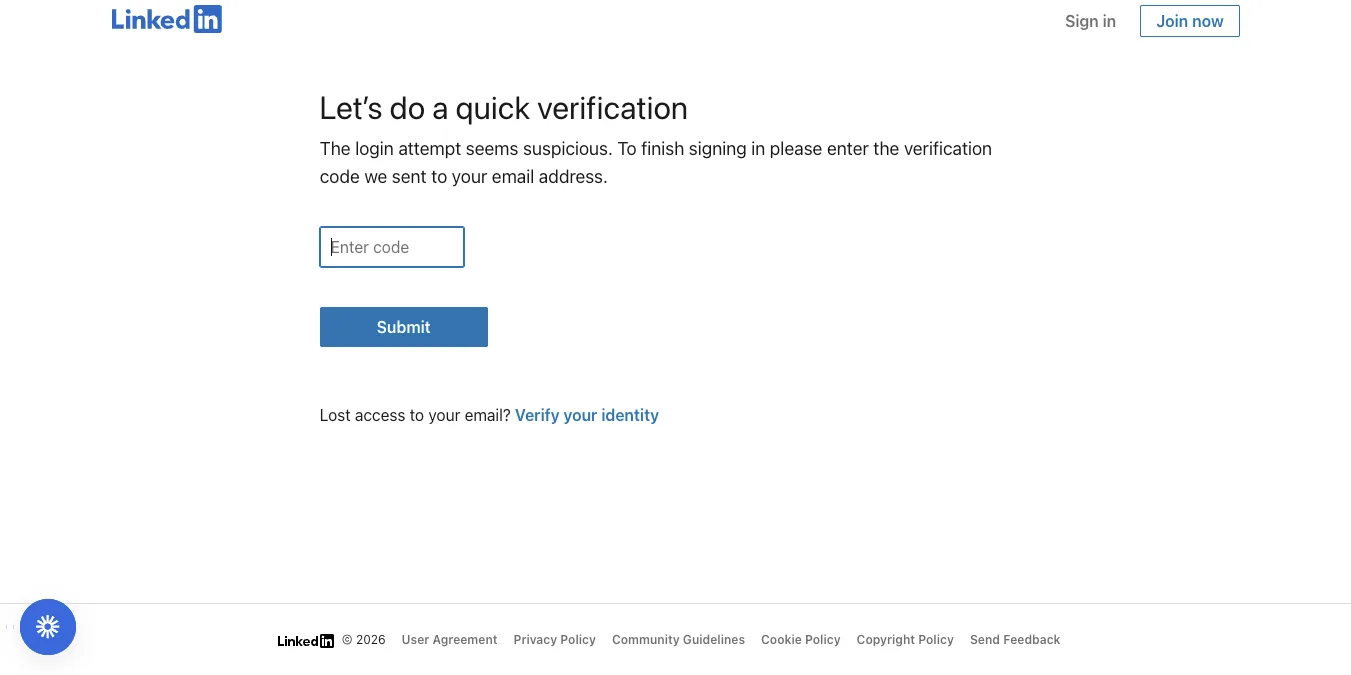
For additional security, LinkedIn may ask you to verify your identity.
If prompted:
- Check your registered email address.
- Copy the verification code sent by LinkedIn.
- Enter the verification code.
- Click Submit.
Note:
This verification step appears only when LinkedIn detects a new browser, device, or unusual login activity.
Step 6: Create a New LinkedIn Post
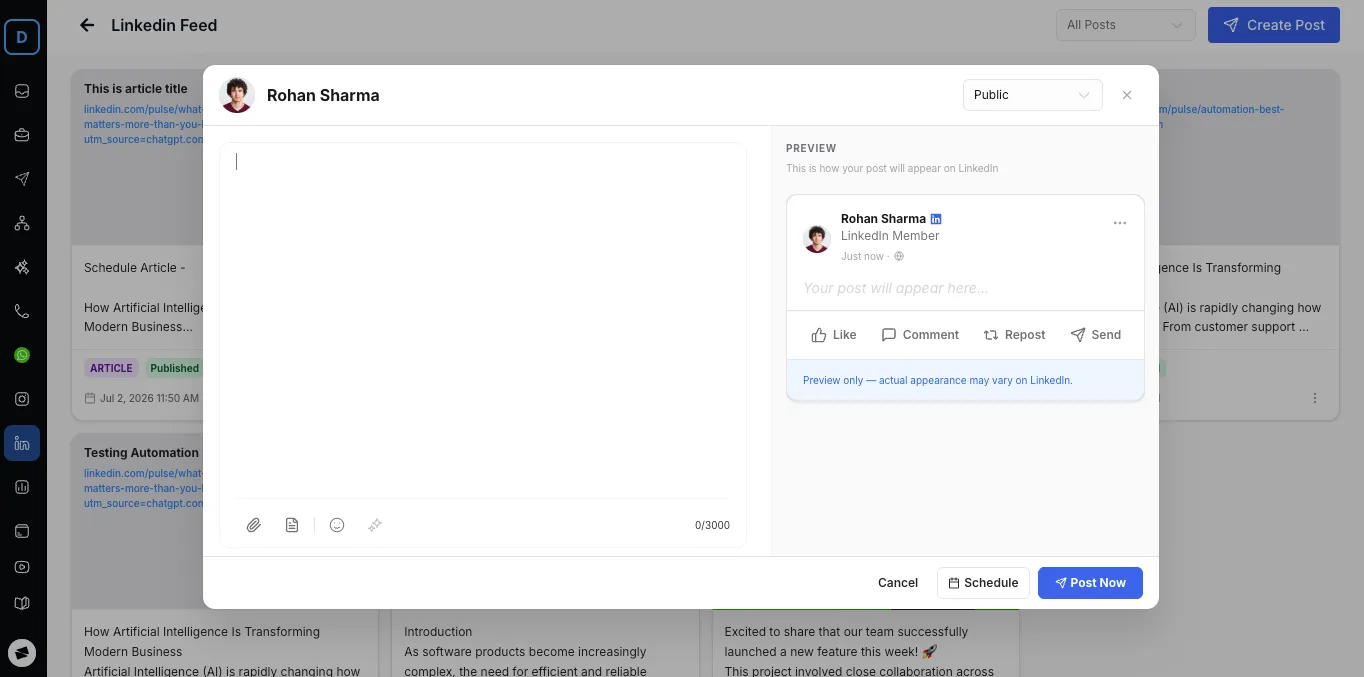
After successfully connecting your account, click the Create Post button in the top-right corner.
The LinkedIn post editor opens, allowing you to:
- Write a new post
- Preview your content
- Schedule publishing
- Publish immediately
Step 7: Write Your Post
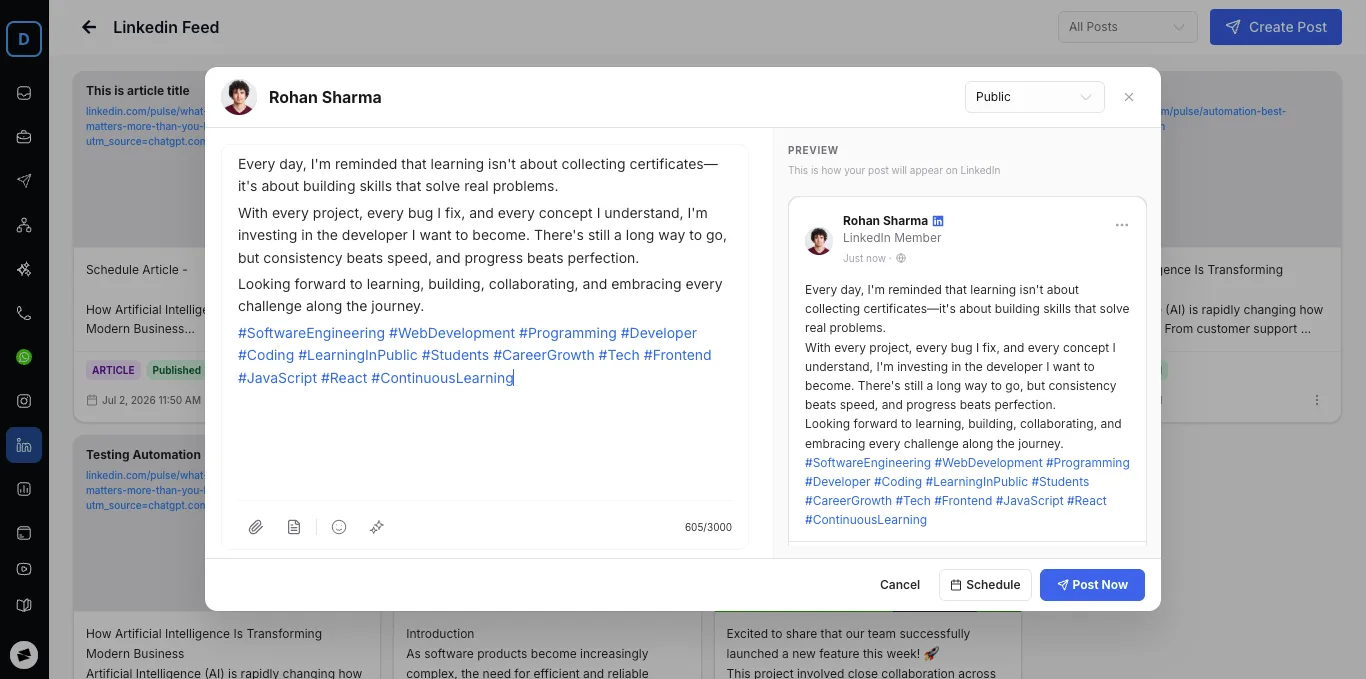
Enter your content into the editor.
As you type, duochat displays a live preview so you can see exactly how your post will appear on LinkedIn.
Your post can include:
- Text
- Emojis
- Hashtags
- Mentions (where supported)
A live character counter is also displayed to help you stay within LinkedIn's limits.
Step 8: Add Images or Media
Visual content helps increase engagement on LinkedIn.
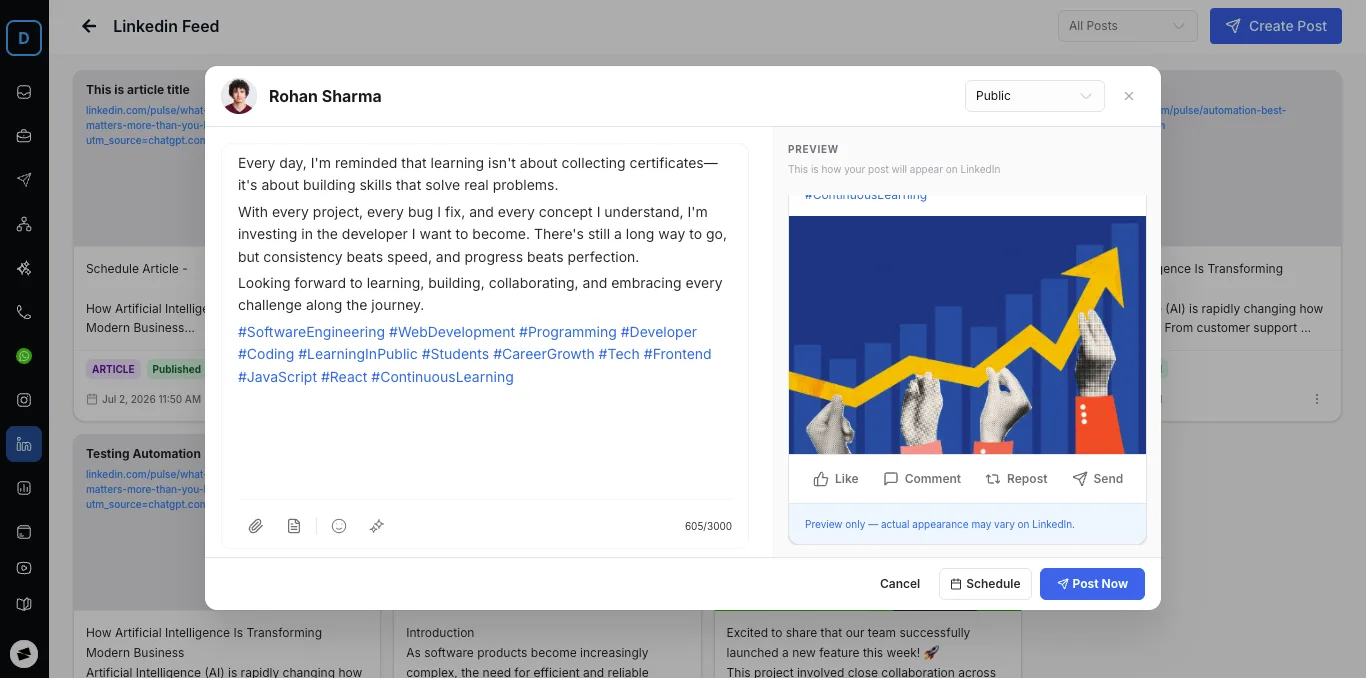
Click the Attachment icon at the bottom of the editor and select one or more images to upload.
After uploading, the live preview updates automatically to display your selected media.
Step 9: Publish or Schedule Your Post
Once your content is ready, choose how you'd like to publish it.
Publish Immediately
Click Post Now to instantly publish your content to LinkedIn.
Schedule for Later
Click Schedule, choose your preferred date and time, and duochat will automatically publish your post at the scheduled time.
Step 10: View and Manage Your Posts
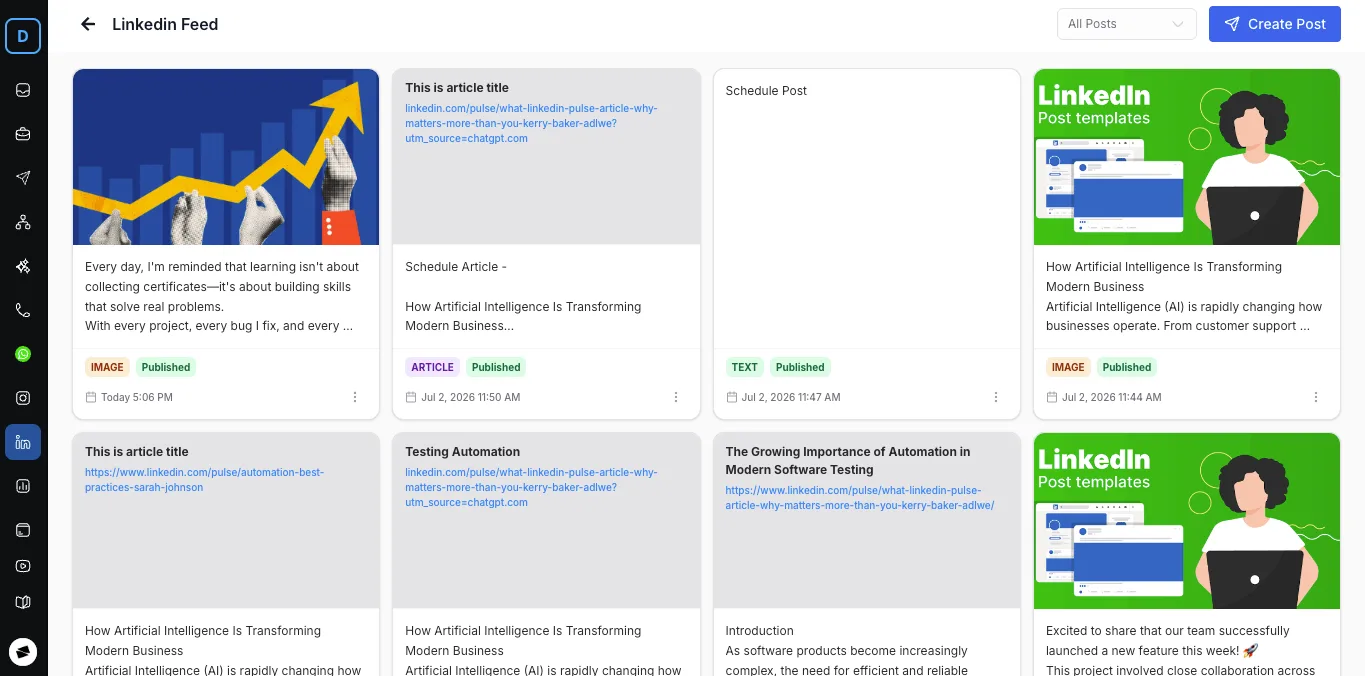
After publishing or scheduling your content, you'll be redirected to the LinkedIn Feed dashboard.
From here you can:
- View published posts
- View scheduled posts
- Create additional posts
- Manage all LinkedIn content from one central location
Tips for Better LinkedIn Posts
To maximize engagement:
- Write clear and concise content.
- Start with a compelling opening sentence.
- Use relevant hashtags.
- Include high-quality images whenever possible.
- Review the live preview before publishing.
- Schedule posts during your audience's peak engagement hours.
Troubleshooting
Unable to Connect LinkedIn
If you're unable to connect your account:
- Verify your LinkedIn credentials.
- Check your internet connection.
- Accept all requested LinkedIn permissions.
- Try reconnecting if the authorization session expires.
Verification Code Not Received
If you don't receive a verification code:
- Check your inbox and spam folder.
- Wait a few minutes for the email to arrive.
- Request a new verification code if necessary.
Company Page Not Available
If your LinkedIn Company Page doesn't appear:
- Confirm that you're an administrator of the page.
- Ensure all required permissions were granted during authorization.
Unable to Publish Posts
If publishing fails:
- Verify that your LinkedIn account is still connected.
- Ensure your content complies with LinkedIn's publishing guidelines.
- Reconnect your account if the authorization token has expired.
You're Ready!
Congratulations! Your LinkedIn account is now connected to duochat.
You can now create, preview, schedule, and publish professional LinkedIn content while managing all your posts from a single, centralized dashboard.
On this page