Connect Your Messaging Accounts
Connect your WhatsApp Business number to duochat to start automating customer conversations, sending broadcasts, and managing all your messaging from one platform. This guide walks you through the complete setup process.
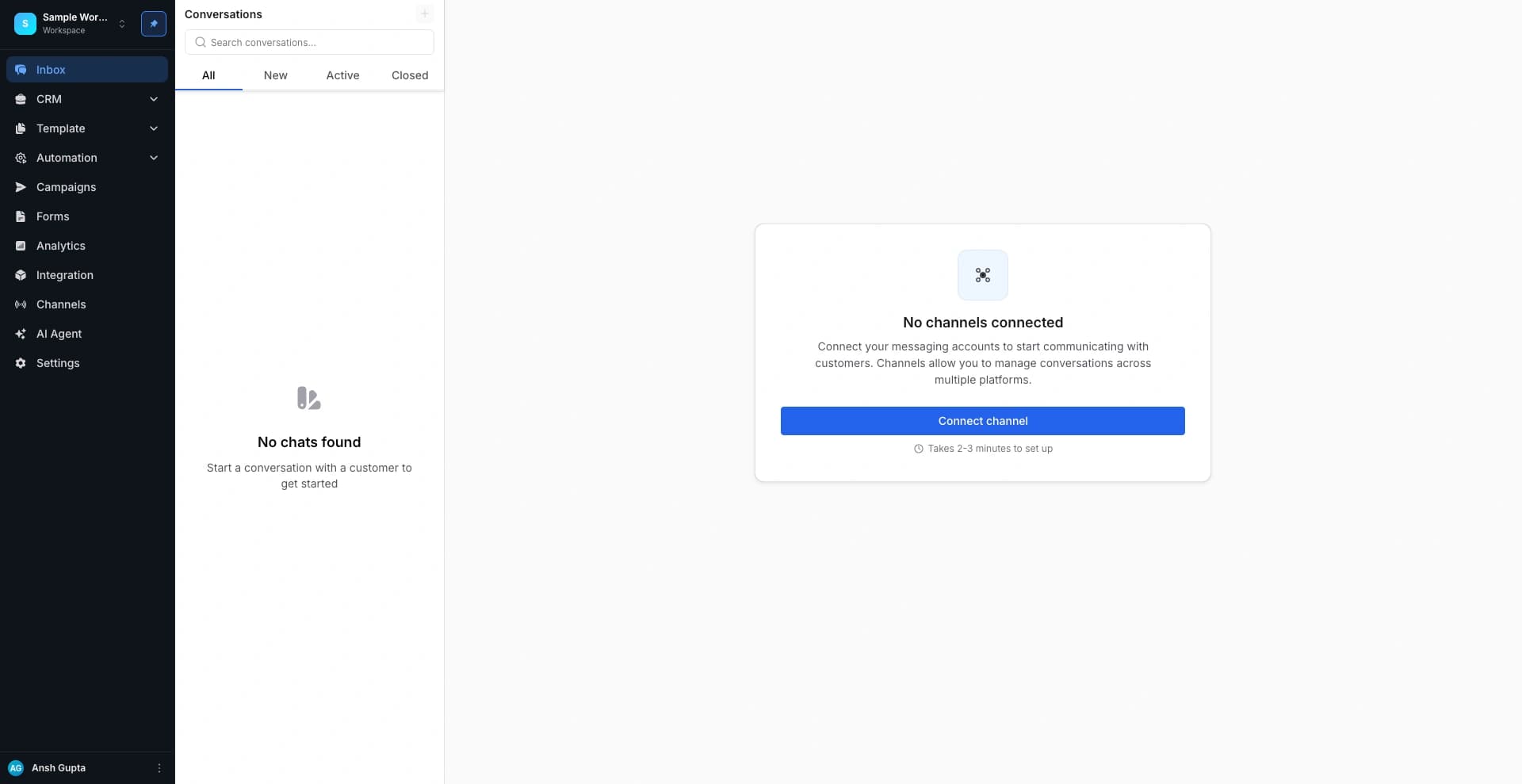
1. Open Channel Settings
Click on “Connect Channel” to start the setup process.
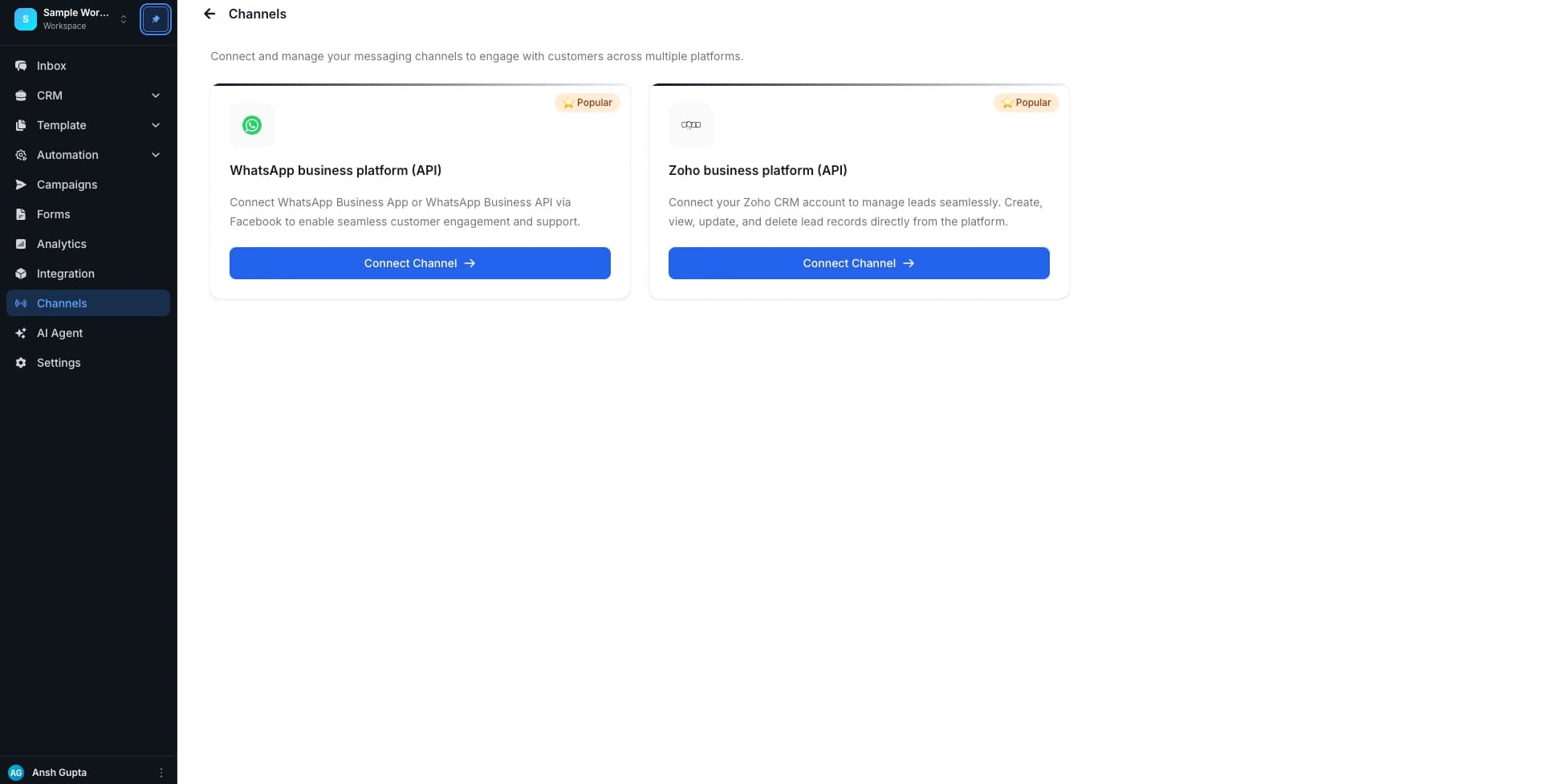
2. Select WhatsApp Business Platform API
Choose “WhatsApp Business Platform API” from the available channel options.
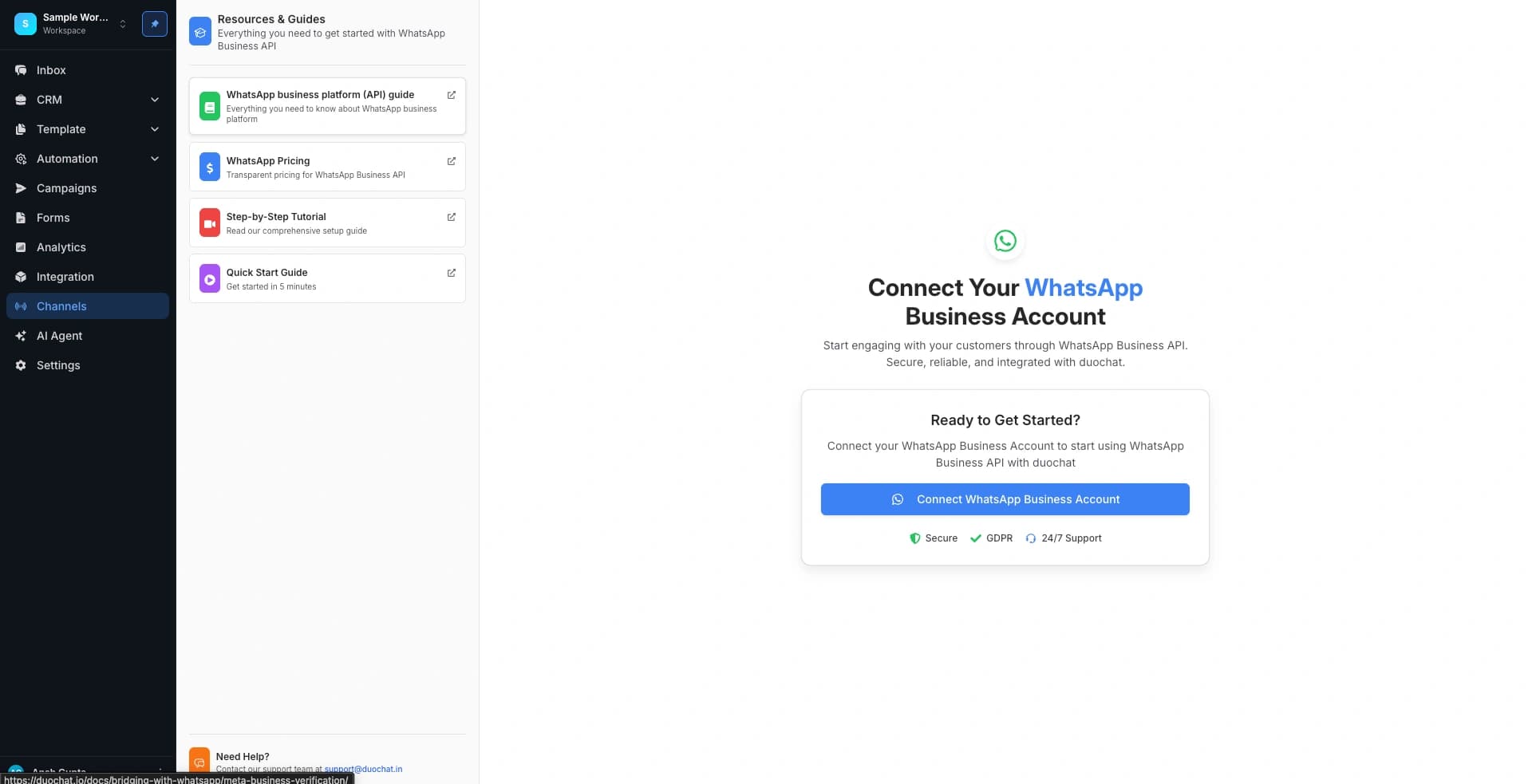
3. Start WhatsApp Connection
Click on “Connect WhatsApp” to begin the integration process.
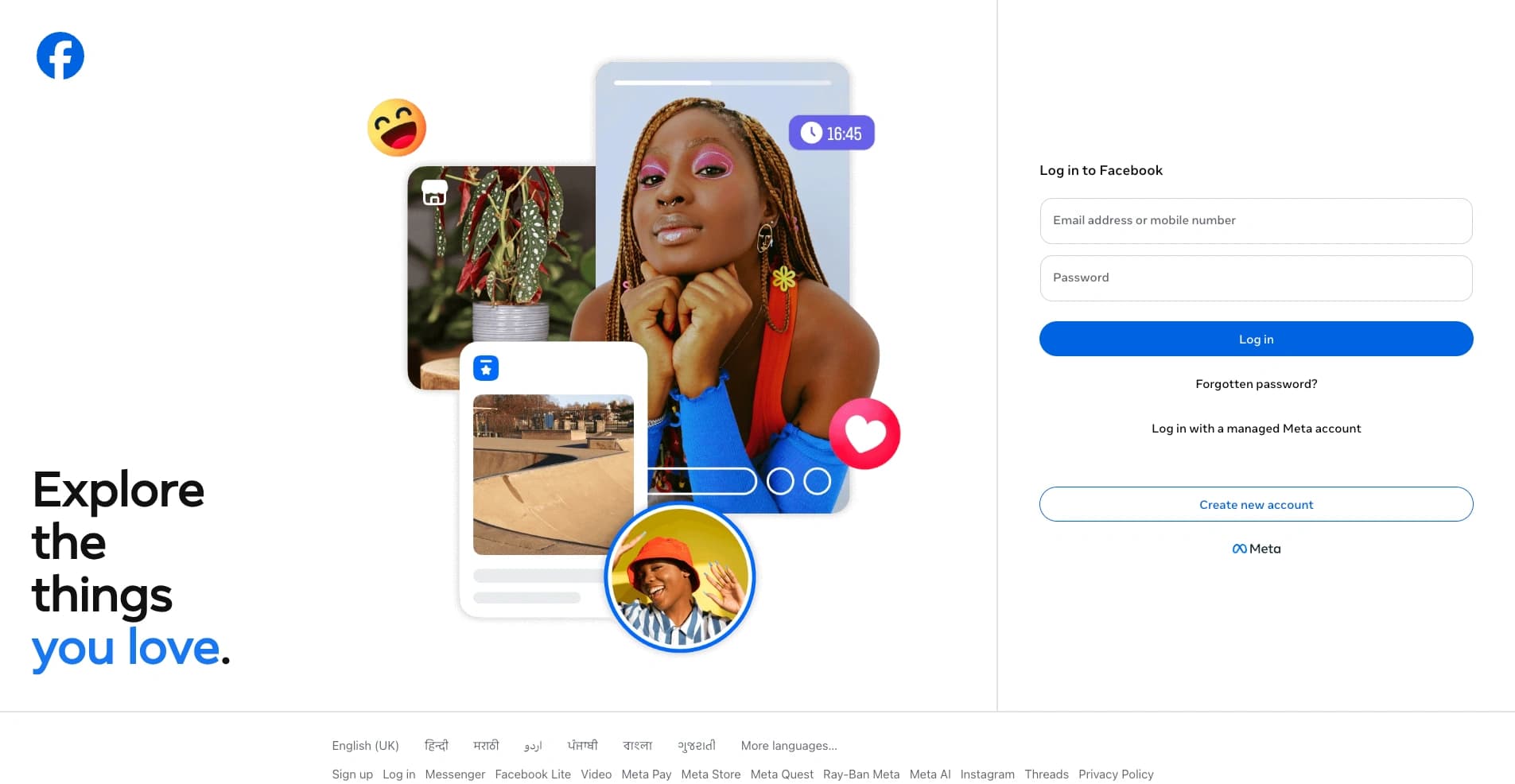
4. Login to Facebook
You will be redirected to Facebook.
Log in with your Facebook account when prompted.
5. Select Business Manager
Choose your Business Manager account from the list.
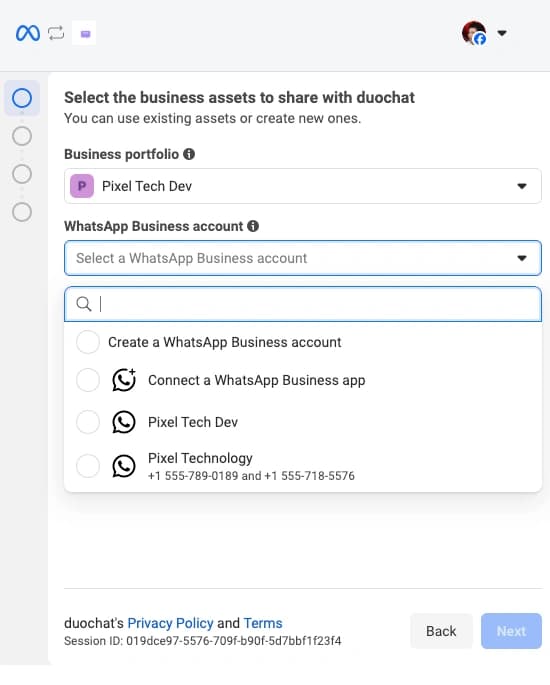
6. Create WhatsApp Business Account
You will now be asked to set up a new WhatsApp Business Account:
- Create a new WhatsApp Business Account
- Create a new WhatsApp Profile
- ⚠️ Do NOT use an existing WhatsApp Business Account
7. Set Account Details
Provide the required details:
- WhatsApp Business Account Name (not visible to customers)
- Display Name (visible to customers)
- Select the WhatsApp number you want to connect
8. Verify Your Number
- You will receive an OTP via SMS or phone call
- Enter the OTP to verify your number
9. Grant Permissions
Allow all required permissions for duochat to access and manage your WhatsApp Business account.
10. Complete Setup
- Wait for the process to finish
- Click “Finish”
- The Facebook pop-up will automatically close
11. Select Your WhatsApp Account
- Your newly created WhatsApp Business Account will appear in duochat
- Select that account to proceed
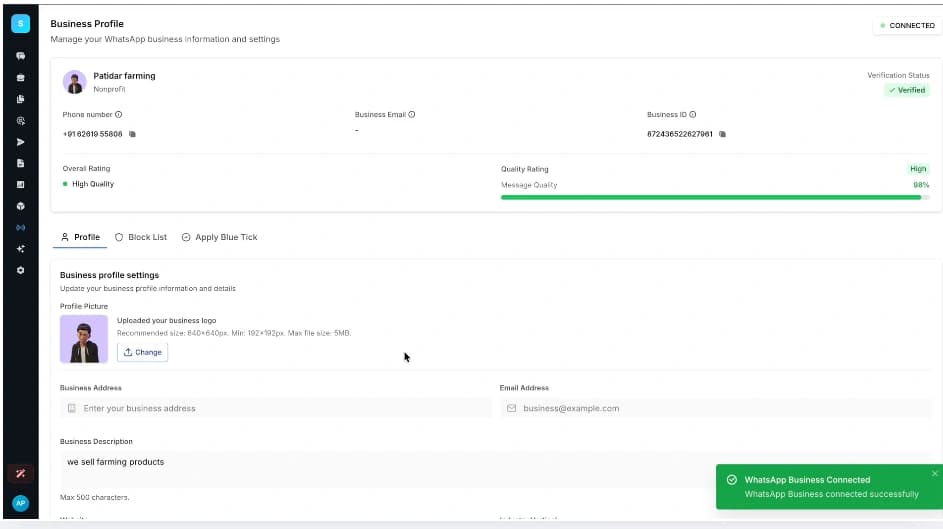
12. Final Confirmation
- Check the box confirming you have disabled 2-Step Verification
- Click on “Connect Number”
13. Account Status
- Initial status will show as Pending
- It will automatically change to Approved once Meta completes the review
- A daily sending limit of 250 business-initiated messages is applied initially
Notes
- Make sure you use a clean and valid WhatsApp number
- Do not connect an already active WhatsApp Business setup
- Approval time depends on Meta’s verification process
🚀 Once approved, you can start automating conversations, sending campaigns, and managing all WhatsApp communication directly from duochat.
On this page